Art & Soul - Stars Unite to Celebrate and Support The Arts

Check out this video I created for Photographer Brian Smith's book "Art & Soul." In this six-part web series, Brian is interviewed by Creative Coalition President Tim Daly, the actor who helps Brian demonstrate some tips for taking better photographs. Brian gives some great insight into how he photographed a book full of celebrities who hand wrote notes about what "Art" means to them. The book is being accompanied by a drive to collect 100,000 testimonials from you people out there. Your testimonials will be brought to Washington, DC in order to compel our elected officials to keep Art eduction alive in America's schools. You can post a photograph of yourself along with your own personal note at this Elle Magazine site: http://www.elle.com/Pop-Culture/Movies-TV-Music-Books/Art-Soul

ARRI Alexa VFX metadata extraction | fxguide

Snehal Patel, Sales Associate (Pro Camera Accessories) at ARRI, has been working with Bill Bennett, ASC to test out a workflow for VFX to extract Lens Data and Tilt/Roll information from the Log-C Quicktime files coming out of an Alexa Plus. He posted this information which allows one to extract dynamic per frame Alexa metadata from Alexa files.

It was known that all metadata information was being saved in the Quicktime video file including “per frame” info for things like F-Stop, Focal Length and Zoom data.

Link to the ARRI web page on metadata

The problem was that there were not any metadata readers available for Quicktime that spit out frame-by-frame info. Luckily, ARRI has just released “Meta Extract” for both Mac and PC which is software that runs in a terminal window (command line) and allows you to spit out a semi-colon delimited CSV database file which you can open in Excel. The database is organized by timecode and contains info for every frame in your shot. Some info is static (exposure index, look file, etc.) and other info changes line by line (f-stop, tilt, roll).

Here is the download page for both the instructions (release notes) and software for “Meta Extract”

If you read the PDF it gives precise instructions on how to extract the data.

For example, to extract the metadata for a video file named “A002C016_110719_R33F.mov” on the desktop and make a CSV file called “A002C016_110719_R33F.csv” you would type:

./ARRIMetaExtract /Users/MyUser/Desktop/A002C016_110719_R33F.mov /Users/heugel/Desktop/
A002C016_110719_R33F.csv

This will also extract a look file, in .xml format, that was used for that shot (if one had a Look assigned in the camera) which you can run through the LUT generator to get an LUT without having to go back and find the original Look file.

Snehal Patel explains in his post that when someone wants to look at the CSV file in Excel or another database viewer, make sure they open Excel and do an “import” of the CSV file as opening directly will give you an incorrect display. “During import, be sure to specify that the file is ‘semi-colon delimited’ and don’t reformat the columns. The database opens up and you can see your shot frame-by-frame along with all the metadata that is recorded. To get a list of extracted fields that will show up in the database, see the Meta Extract release notes PDF”.

Here is a direct link to just the PDF


An article about a forum post I did. VFX peeps should be happy that we got this MetaData Extractor working.

Snehal

Latest Parody Music Video tops 500K views

Mvi_1331_tums-shot_mod

I'm happy to say our "Gassy and I'm Bloated" music video has done extremely well on YouTube, topping half a million views so far.   It was a lot of fun to make an LMFAO parody of their song "I'm Sexy and I Know It."  As usual, Smooth-E knew how to take it to the next level.  With an awesome crew, we hit Venice Beach with a vengeance and got our shoot done without permits.  Shhhh.... don't tell anyone.

Snehal Patel
Director/Cinematographer

Looking Forward

P81

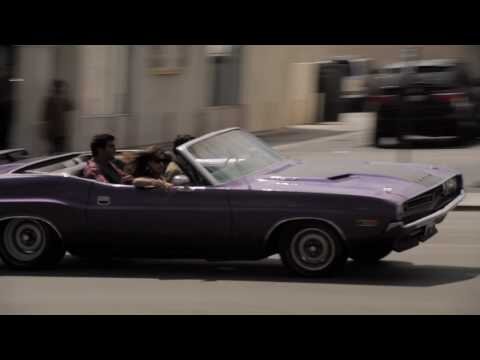
This image shows us how Chevy has evolved over the years but it also mirrors our growth as a society in a very short period of time. A sliver compared to the age of this planet. Positive change can happen quickly and effectively if we remain looking forward and celebrate every day as the gift that it is.

Testing the Ikonoskop A-Cam dII - the camera that loves you

Ikonoskop sent me a A-Cam dII camera to outfit with Arri accessories and try out in a real-world situation.  I was impressed by the image quality of this digital-16mm camera that has a lot of potential for professional use.  The size is tiny compared to tech that is simlar but it definitely holds up to the bigger cameras in a lot of ways.  Here is a sample vid I shot with the camera - I tested in both indoor and outdoor lighting conditions:

I didn't have any external connectors or cables so I used the onboard viewfinder.  Since it is a very light camera but solid camera, I made good use of the accesories like mini-follow focus, shoulder pad and mini matte box with handgrips attached while filming handheld outdoors:

The super-16 lens by Arri gave me perfectly sharp images with a nice triangle-shaped flair in sunny conditions. 

I used the following Adobe CS5 workflow to convert and edit the footage: 

1.  Copy footage from digital mags onto 2 separate harddrives over USB (slow but Ikonoskop is developing a faster transfer solution.)  The second harddrive was for a backup in case the first failed.  All harddrives fail, so backup backup backup.

2. Open After Effects project and check general preferences to make sure your sequence footage defaults to 24fps.  This is important because every time you edit a sequence, it reimports itself using this setting to determine the frame rate.  Since the camera films at a true 24 fps, make sure this setting is correct otherwise you will see a strobe in some of your footage later.

Ikonoskop_preferencesettings24

3. Import one of the sequence folders (footage is in Photoshop RAW image sequences and not in video files).

Ikonoskop_testimportsettingsbefore
4. Use RAW editor that pops up automatically within AfterEffects to color grade the footage (there is a great video online about these settings.)  I got the help of Michael Britt of Samy's Education who saw the RAW settings and was happy to be messing with the controls since it's the same interface as editing RAW images in Photoshop.

Ikonoskop_testimportsettingsafter
5. Place the color-corrected clip into a timeline and send to the render que so that video clips are created.  I was able to put muliple clips in the render que so that I could batch convert a bunch of footage.

Ikonoskop_testscreencap
6. The compression ouput that I chose for the video files was ProRes 422.  I then imported these video clips into Adobe Premiere Pro and started editing.

Ikonoskop_premiere-edit
7. Finish editing and then output master ProRes422 video file which can be compressed into other formats like H264 Quicktime for BluRay or online distribution.

Hope this helps!  Great camera.  Check it out if you have a chance.

Snehal Patel
Director/Cinematographer


Nzinga's Story

A short film I shot in Chicago during a pleasant, windy evening.  It was during a business trip for Arri, so I had an Alexa with a Alura 18-80mm lens.  I worked with Freddie Molina and Digital Guru Gary Adcock.  We had a nice team of volunteers and a great new talent, Nzinga.

Director/DP
Snehal Patel

Sony Backlot Shoot Behind-the-Scenes

Check out this cool event where I taught participants how to use small cameras with professional accessories to achieve a filmatic look.  We got to shoot on the Sony Backlot in Culver City with a cast of fairies and a confused young lady who thinks she is going crazy because she is being haunted by the colorful creatures of magic. 

Thanks to all the sponsors and participants for making this a wonderful event.  A special thanks to Aisha Lomax for helping write the script and being the confused lady.

Snehal Patel
Director/Cinematographer

Arri Alexa 120fps preview

120 frames per second ability will be coming to the Arri Alexa late this year. This will be at FULL HD resolution of 1920x1080 at ProRes 422HQ setting. Even at this high frame rate, Alexa will still retain the 14stops of Dynamic Range and High sensor sensitivity that the camera has become known for.

Snehal Patel

Cheat Sheet for Taking Great Photos

Media_httpsakbuzzfedc_dljzz

Thanks to Miguel Yatco for this cool graphic.  He also posted the following notes on his blog - "Living in the Stills."

Exposure

- The light meter is different from the exposure setting.

- Keeping your light meter at “0” doesn’t necessarily mean it’s the perfect setting. Just don’t stray too far from the “0”. Adjust to your liking.

- Positive numbers on your exposure setting will make your photos brighter.

- Negative numbers make your photos darker. 

Aperture

- Small numbers (like f/1.4) have larger openings, which let in more light.

- Big numbers (like f/16) have smaller openings, which let in less light.

Shutter Speed

- Seeing 100, 250, 320, etc. on your viewfinder means “1/(number seen)”, like “1/100”.

- Try not to use 1/60 or less when handheld, that’s when you use a tripod or look for something steady.

- Using longer exposure (slow shutter speed) will let in more light.

- Using shorter exposure (fast shutter speed) will let in less light.

ISO

- ISO is the sensitivity of your camera to light

- Lower numbers are less sensitive to light, which give smoother photos.

- Higher numbers are very sensitive to light, which give very grainy and noisy photos.